Manage screens from your phone
Add screens by QR, get offline alerts, check screenshots and publish — with the Luma Signage app.
Install and sign in
Get Luma Signage from the App Store or download the Android app from our website, then sign in with your dashboard account. Your screens, programs and media are all there.
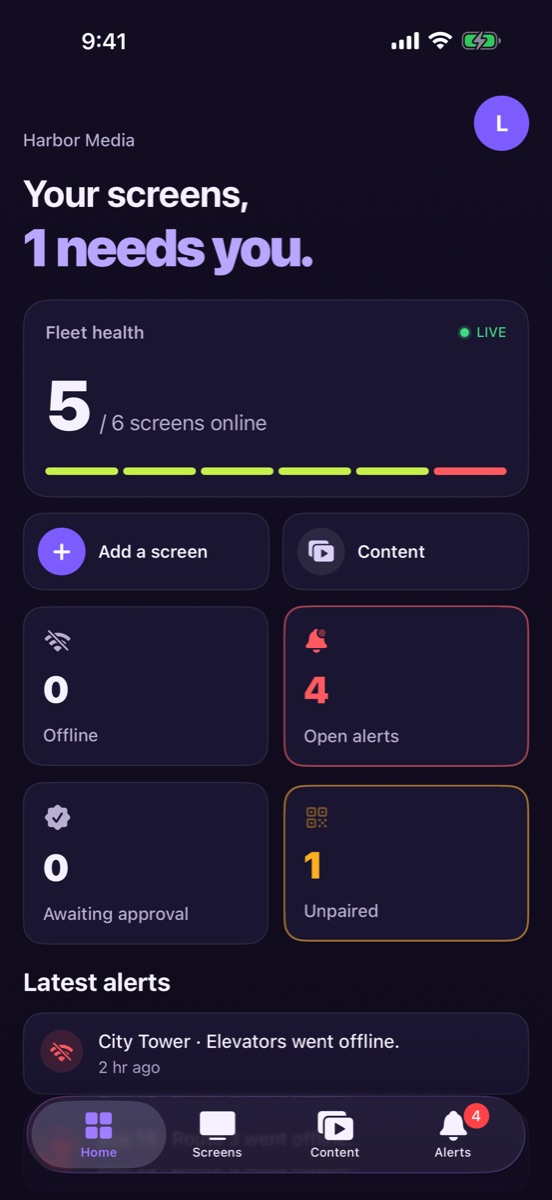
Home: fleet health and what needs you. Add a screen with its QR code
Tap + on Screens and point the camera at the QR code on the new screen. Name it, pick a group, and it pairs itself — your phone’s location can be saved for the map.
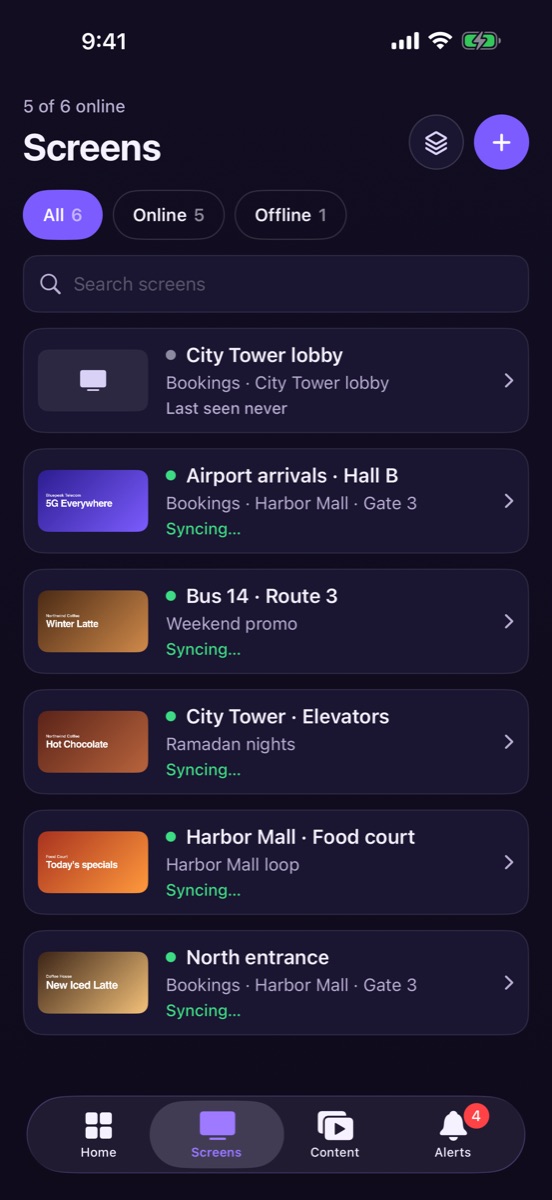
Screens with live status and screenshots. Check and control a screen
Open a screen to see its last screenshot (and how old it is), what it’s playing and its health. Refresh it, take a new screenshot, blank or wake it; reboot and app updates are under the ⋯ menu.
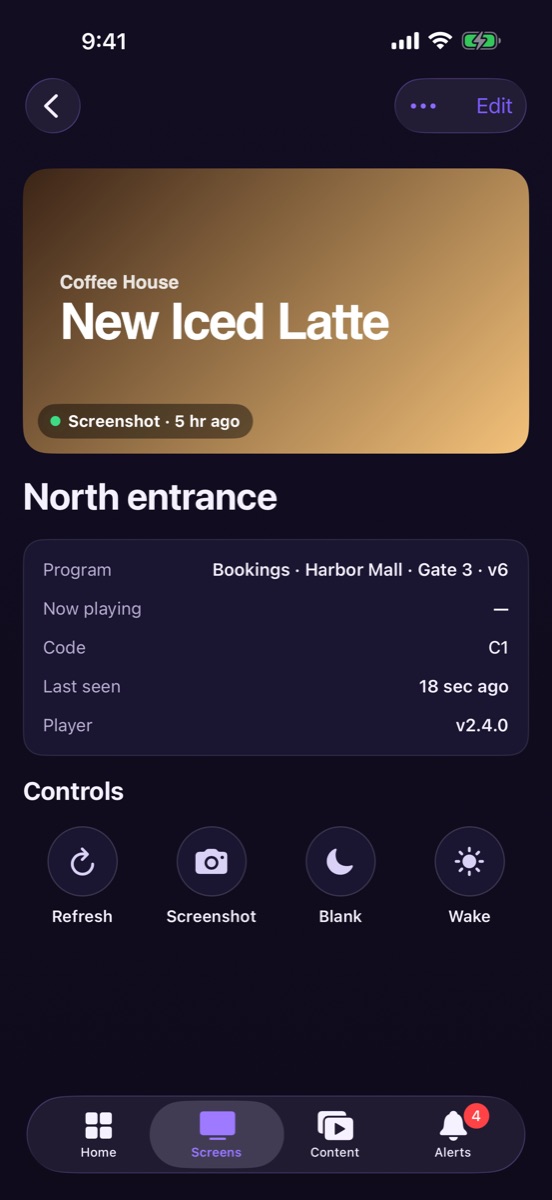
A screen’s page: screenshot, details and controls. Preview and publish programs
In Content, every program shows its first ad. Open one to see each item and press Preview to play the whole loop on your phone, then publish when it’s ready.
Tip · Turn on notifications to hear the minute a screen goes offline — and when it’s back.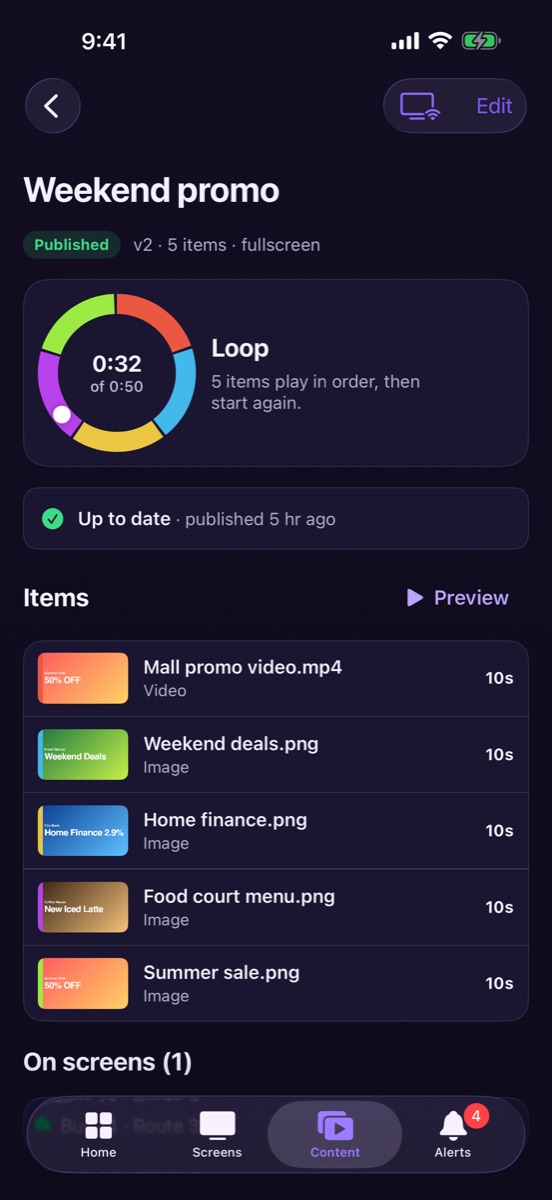
A program with item thumbnails, “Up to date” and Preview.