Put your first screen live
Install the player, pair the screen, upload your media and publish a program — start to finish.
Install the player on the screen
Download Luma Signage Player for Android TV boxes or Windows PCs from the Download page, or open the web player in any browser. One player per screen.
Tip · Android TV boxes and Windows mini PCs work best for 24/7 signage.Create the player and pair it
In the dashboard open Players → New player. Give it a name, type, orientation and location (for the Live Map). It gets a pairing code — enter that code in the player app on the screen and it connects within seconds. With the phone app it’s even quicker: tap + on Screens and scan the QR code the player shows.
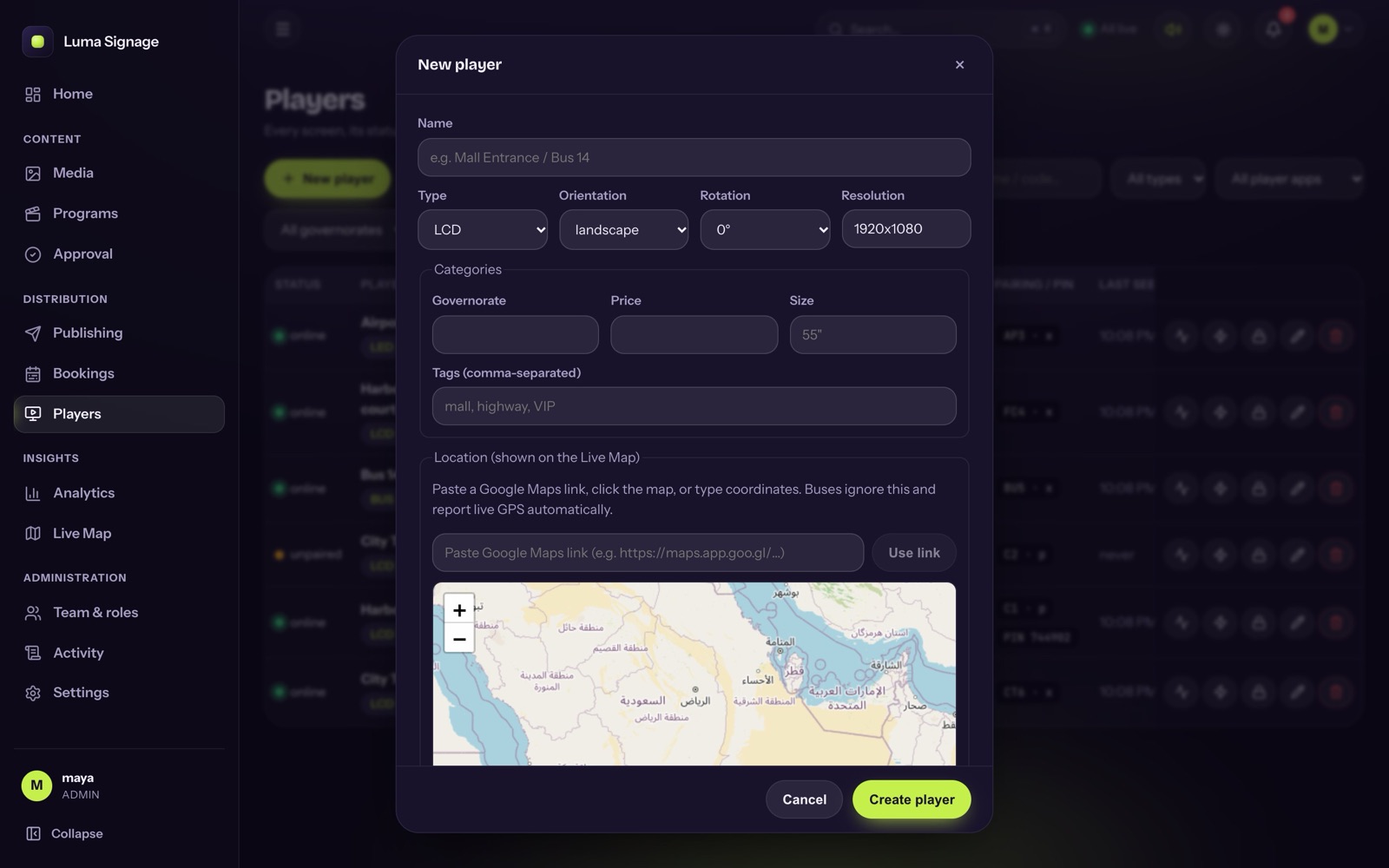
Players → New player: name, type, location and categories. Upload your photos and videos
Drag files into Media. Videos are checked and optimized for screens automatically, and every file gets a thumbnail so you can find it later. Folders, tags and campaign filters keep a big library tidy.
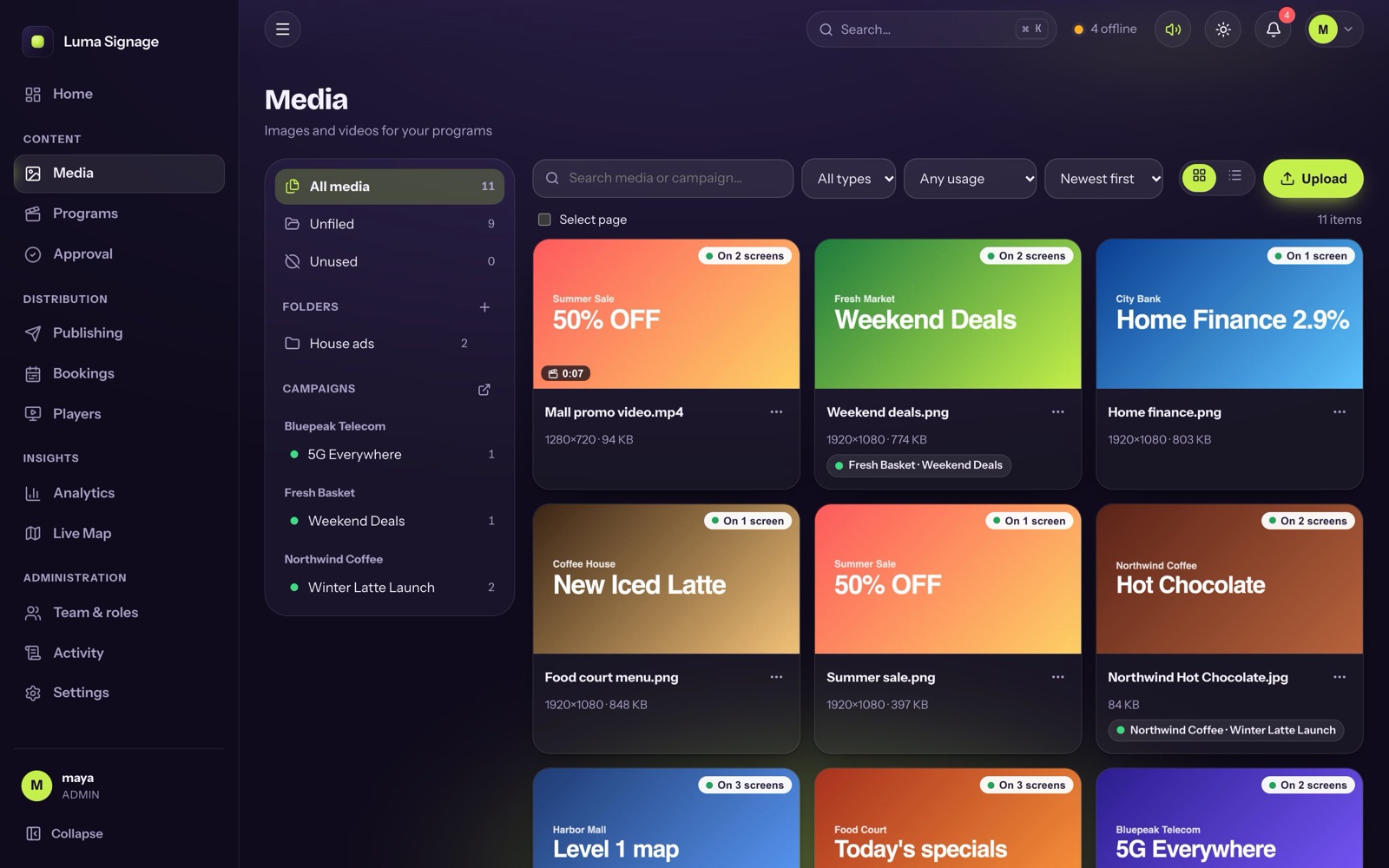
Media library with thumbnails, folders and usage. Build a program
A program is the loop a screen plays. Open Programs, create one, and add media to its zones. Set how long each item shows, add a clock, ticker or weather widget, and preview the whole loop before anyone sees it.
Tip · Use Templates for common layouts like main + ticker, then adjust the zones by dragging.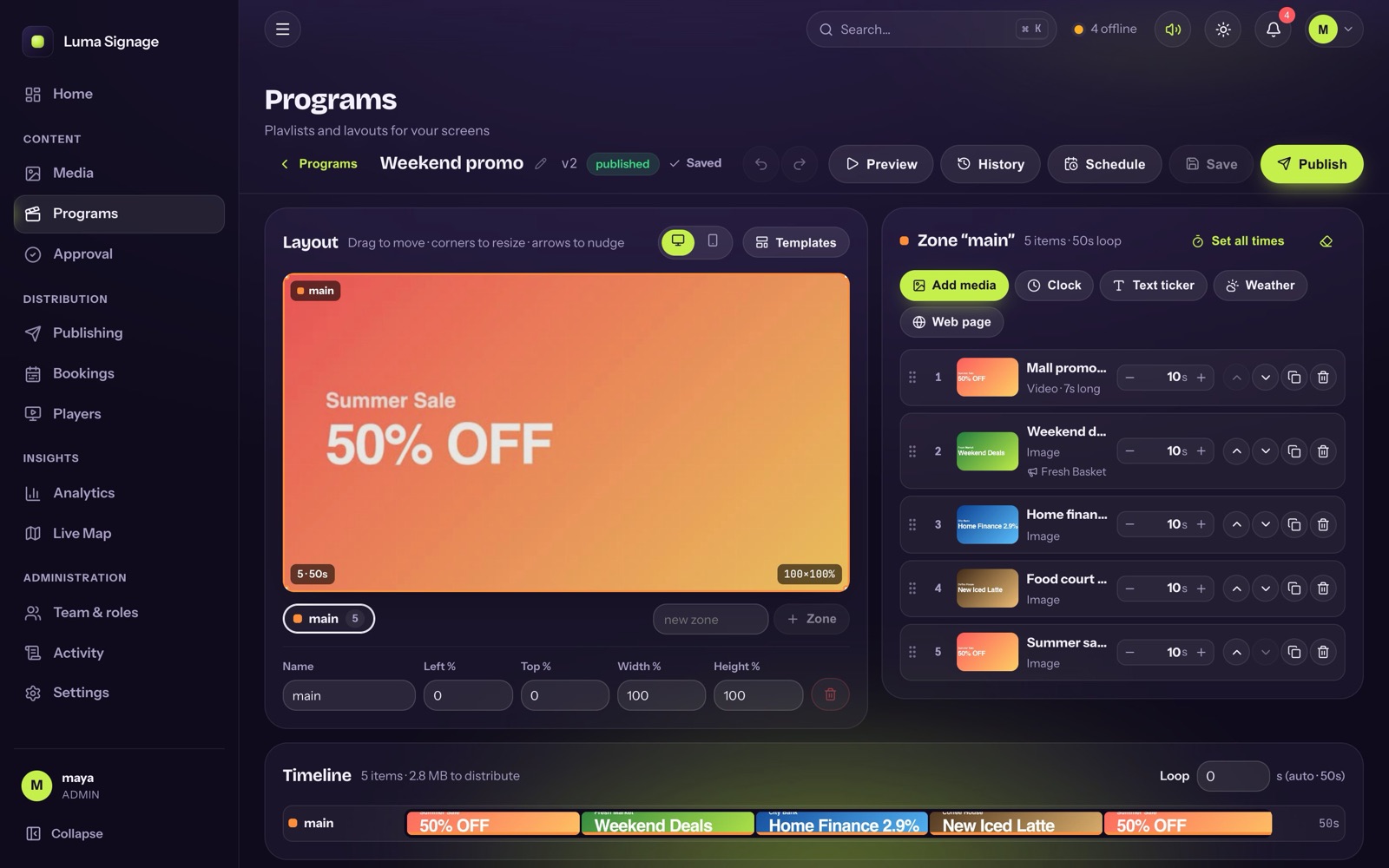
The program editor: layout, items, durations and the timeline. Publish to your screens
Click Publish and choose the screens or groups that should play it. Screens check in every 15 seconds, download only the files that changed, and start playing — then keep playing from their cache if the network drops.
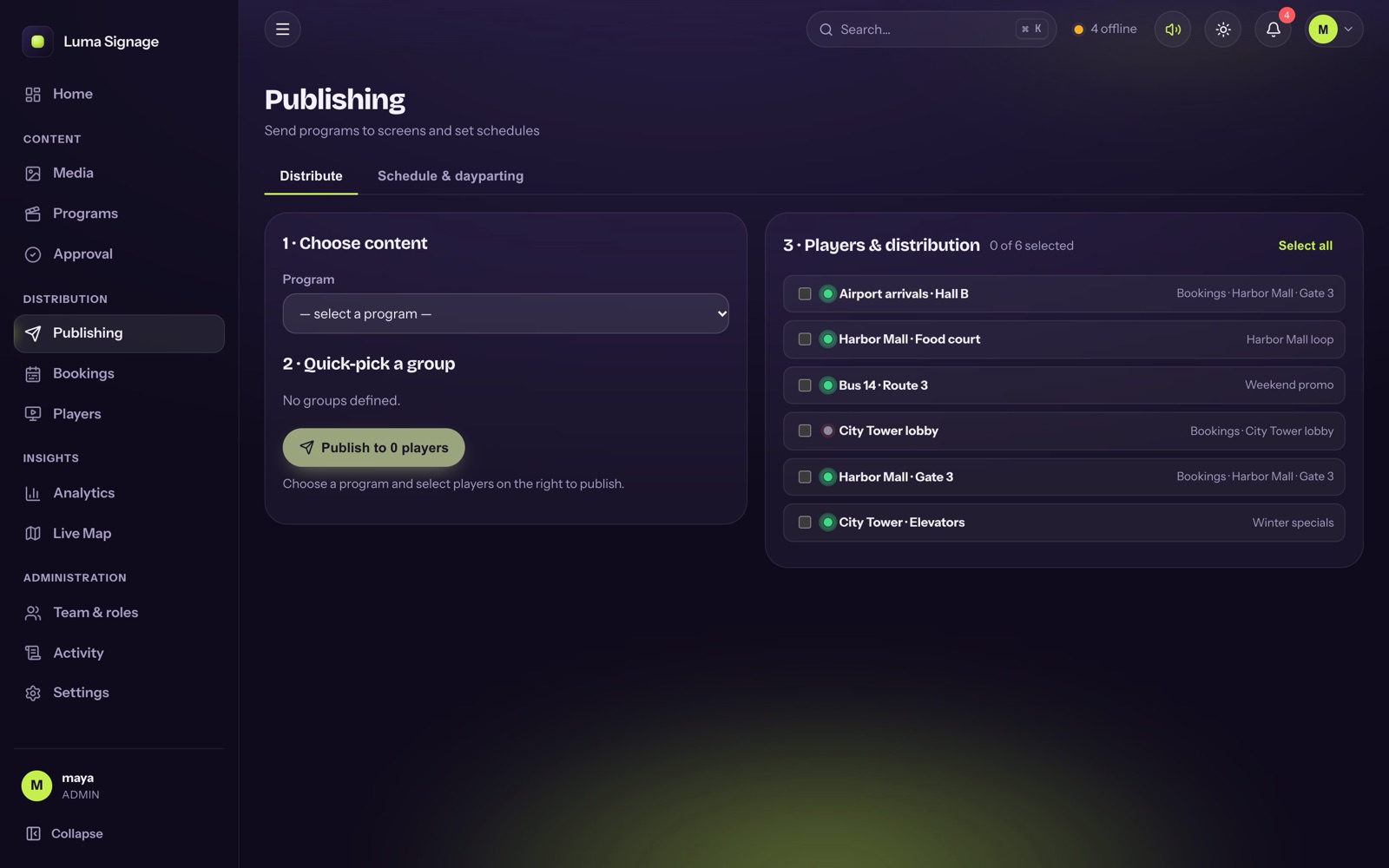
Publishing: assign programs to screens and groups. Check it’s playing
Players shows every screen live: online status, what it’s playing, its last screenshot and its health. You can refresh, take a new screenshot, blank or reboot a screen from here or from your phone.
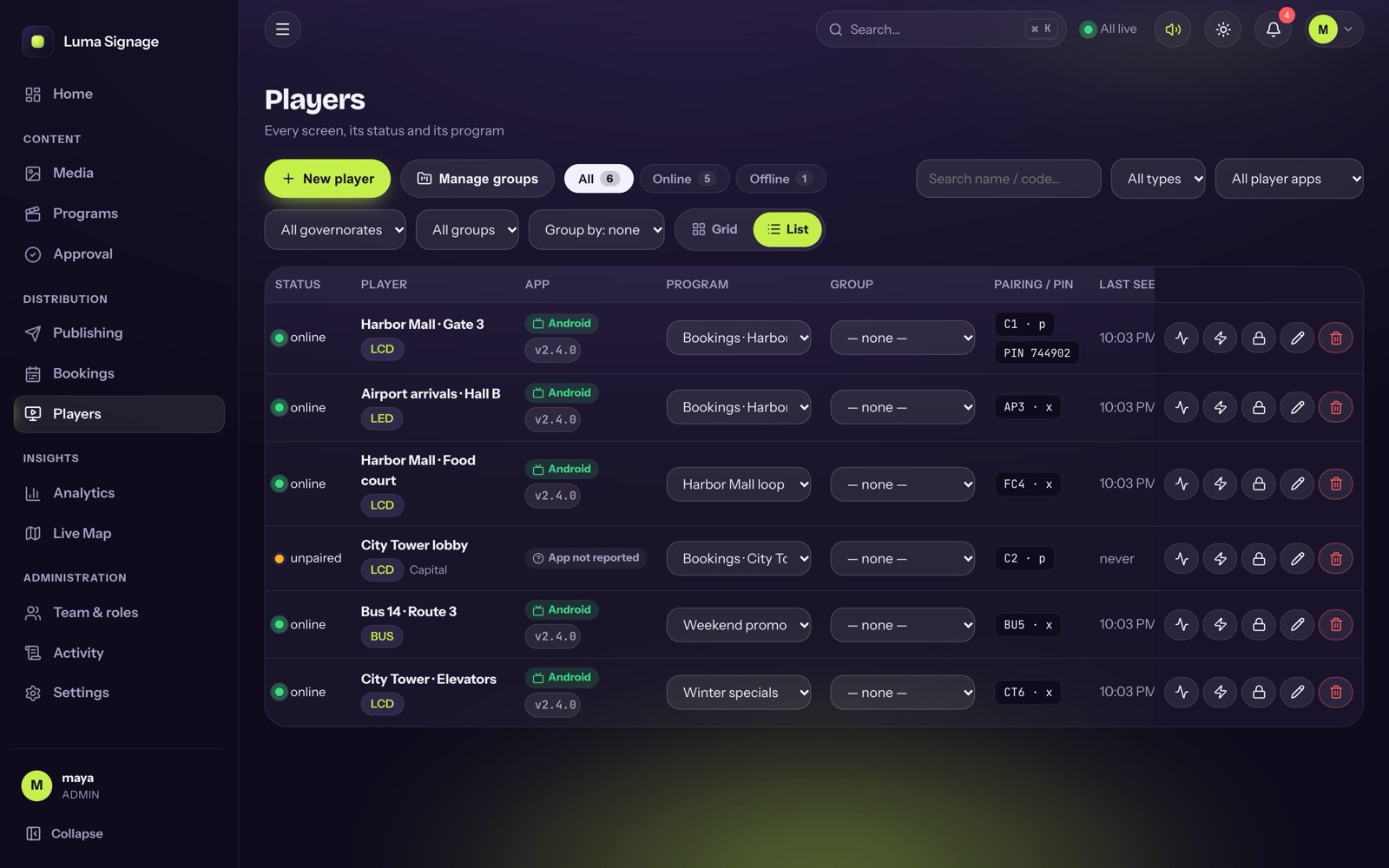
Players: every screen, live.